Anouk Fleet Product Guide
Anouk Fleet is a Dispatch Management System (DMS) designed to manage, coordinate, and track stops, drivers, and vehicles in real time, all from one centralised platform. It replaces manual dispatching — calls, texts, spreadsheets, whiteboards — with a streamlined digital system.
Overview
Anouk Fleet is a Dispatch Management System (DMS) designed to manage, coordinate, and track stops, drivers, and vehicles in real time, all from one centralised platform. It replaces manual dispatching — calls, texts, spreadsheets, whiteboards — with a streamlined digital system.
The platform is split between an admin dashboard (web based) and a driver app (mobile, available on iOS and Android), so dispatchers and drivers stay connected wherever they are. Routes can be planned by driver or, for fleets that need to manage vehicle capacity directly, by vehicle — assigning stops to a vehicle first and a driver second.
Who Anouk Fleet Is For
- Delivery services
- Logistics and courier companies
- Transportation providers
- Field service businesses
- On-demand services
- Any operation using dispatchers and drivers
The Value It Provides
- Saves time by automating dispatch workflows
- Reduces human error and miscommunication
- Improves driver and vehicle utilisation, including capacity-based planning for fleets with mixed vehicle sizes
- Enhances customer satisfaction, including native WhatsApp updates clients already use
- Scales easily as the business grows
Website: www.anouksolutions.com
Anouk Fleet: https://anoukfleet.com/
Email: support@anouksolutions.com
01 Dashboard
Dashboard is the operational snapshot for the selected service date — the first thing dispatch sees when logging in.
- Total routes and total deliveries for the selected date
- Active drivers, and which drivers are assigned or unassigned
- Remaining stop allowance for the current billing period
- Recent active or scheduled routes, openable without leaving the overview
- A driver-management panel showing each driver's assignment status at a glance
- A service-date picker to review past or future operations without touching live routes
02 Stops
- Create, edit, and assign stops in seconds
- View all stops in one place, filterable by depot, route, driver, date range, or status
- Import stops in bulk from a CSV/XLSX file, with column mapping and row-level error review before saving
- Select multiple stops to add them to a route or delete them in bulk
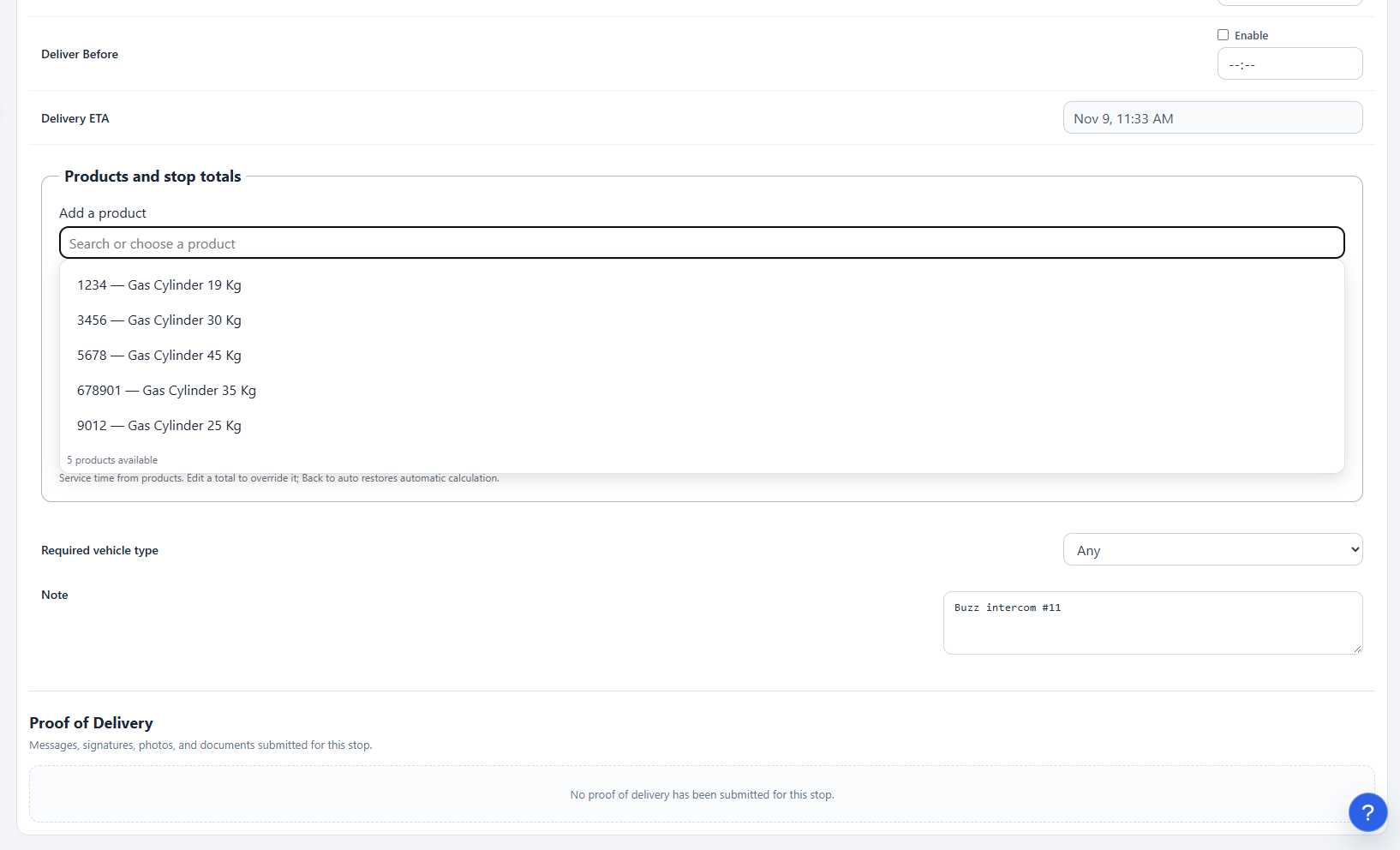
- Add products and quantities to calculate weight, size, and service duration automatically
- Create a stop manually, or download the Excel import template before bulk-importing a file
Good to know
- A route cannot receive a duplicate stop for the same recipient and full address — case and extra spaces are ignored, and a different visit order or delivery window doesn't make it distinct
03 Routes
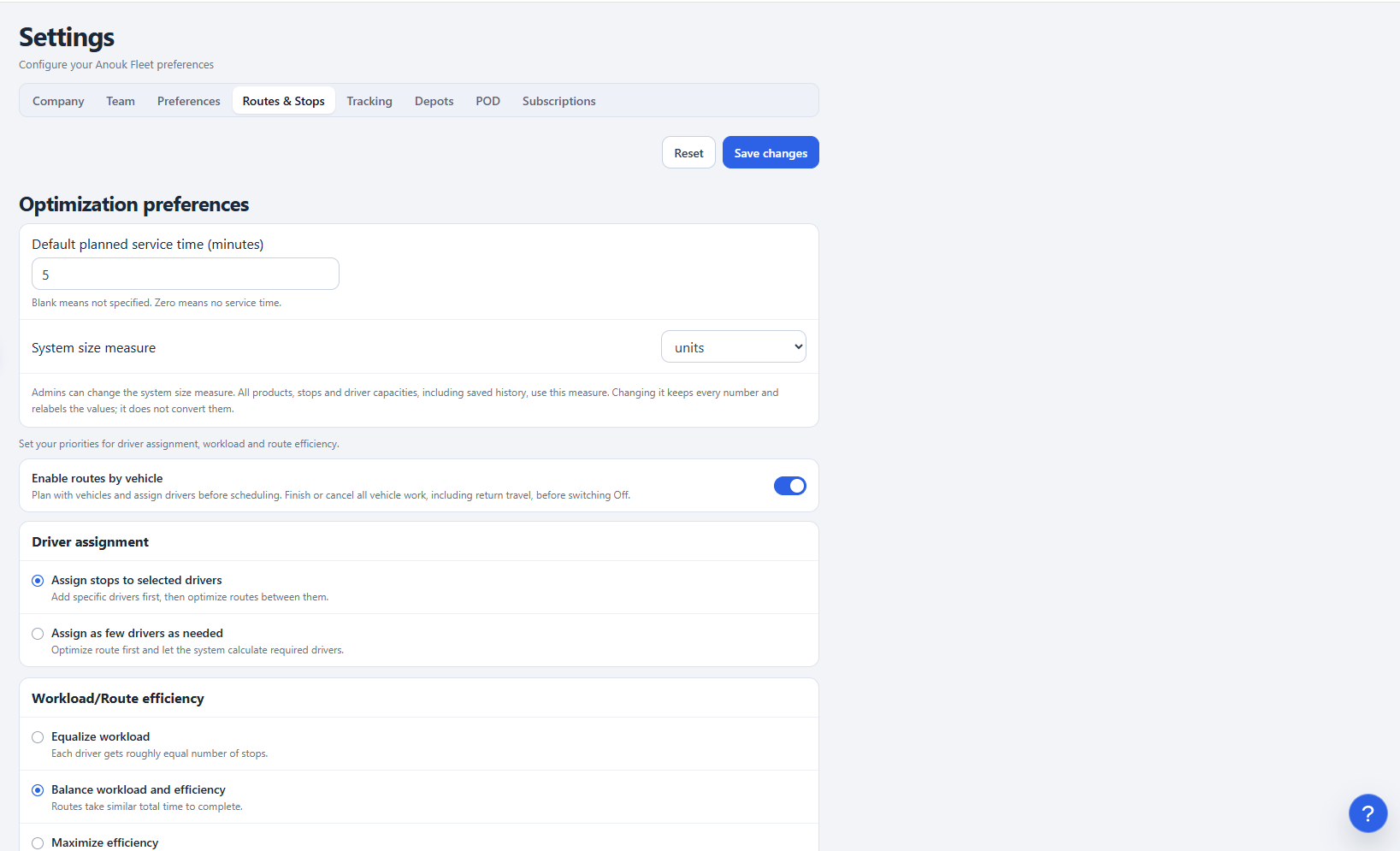
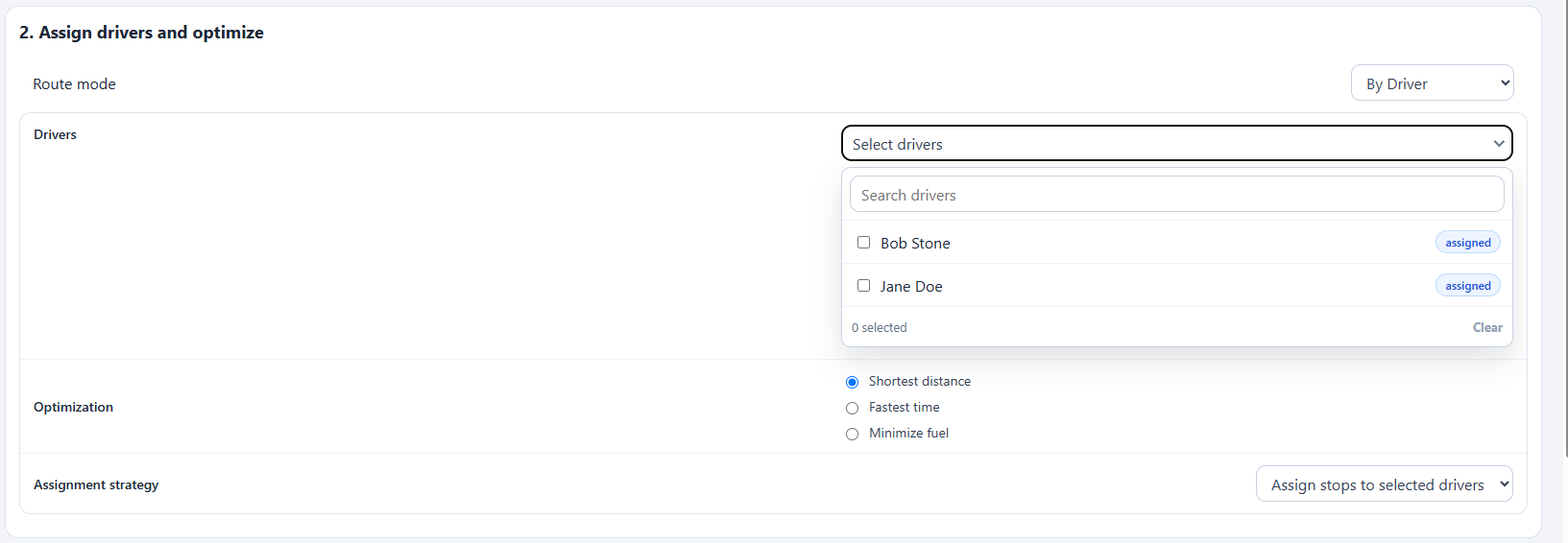
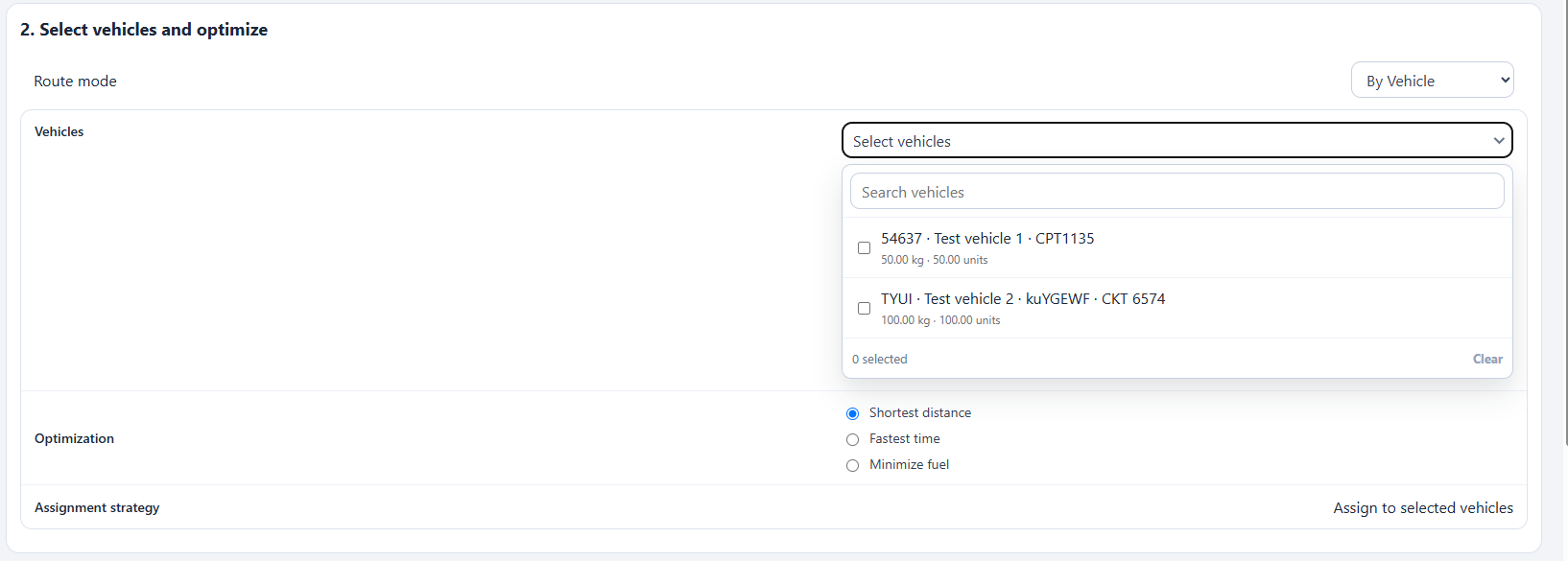
Routes can be created By Driver or By Vehicle. By Driver assigns stops to drivers directly. By Vehicle plans around vehicle capacity first — selecting vehicles instead of drivers — then a driver is assigned to each vehicle before scheduling. An administrator enables By Vehicle in Settings > Routes & Stops.
- Create a route with a depot, service date, start time, stops, and planning options
- Add stops with Add stop, Select from Stops (copies existing stops in — originals stay unchanged), or Import CSV/XLSX
- Optimise by shortest distance, fastest time, or minimise fuel
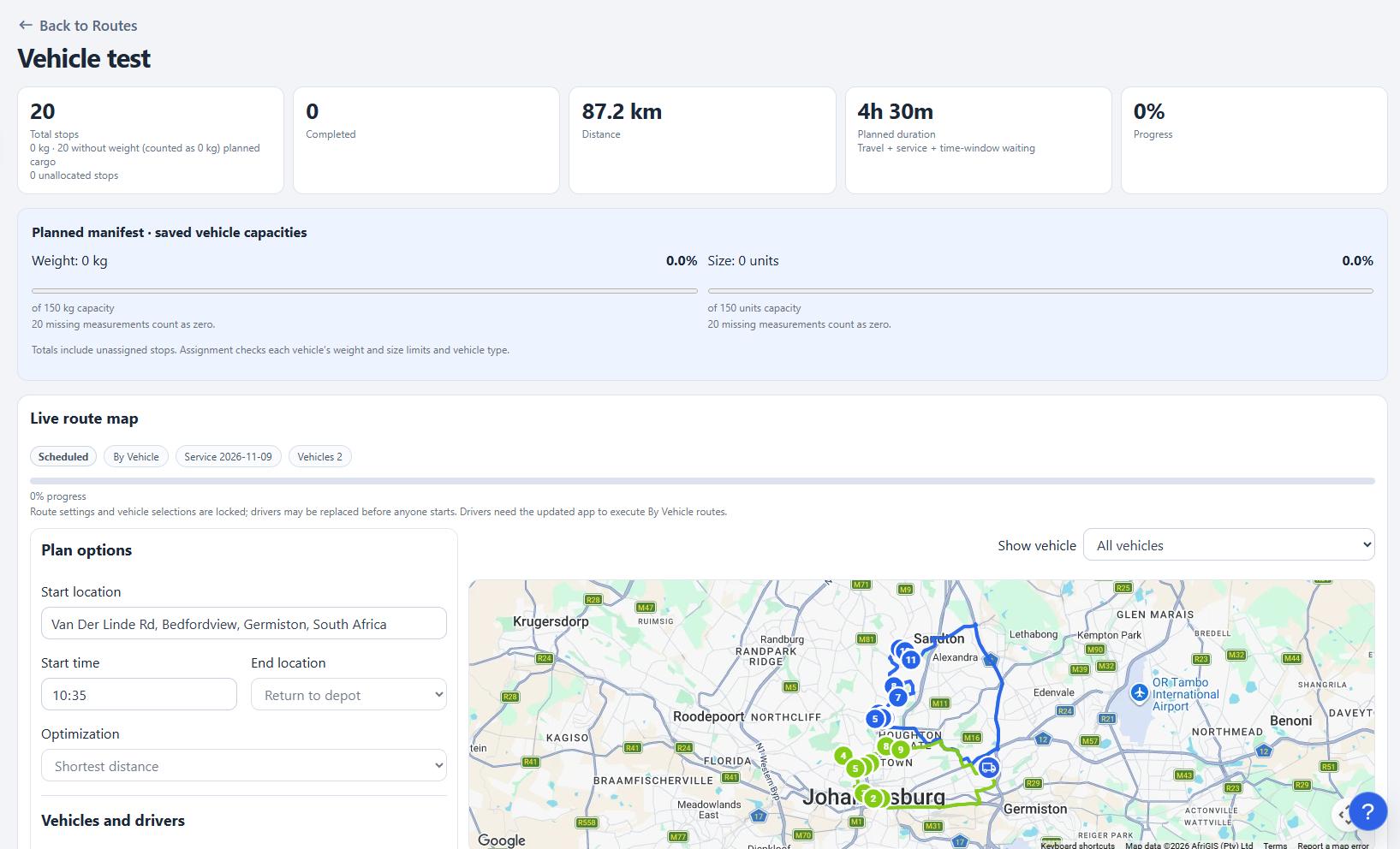
- Weight and size bars show the load of a route's stops against the saved capacity of the selected drivers or vehicles, live as stops are added
- Filter routes by name, status, depot, service date, or archived state — the date filter defaults to the current service date, so widen it to plan ahead or audit history
- Allocate selected stops and Apply allocation group stops to a vehicle manually; Save and recalculate keeps those allocations, and Redistribute stops can replace them across the selected vehicles
Good to know
- For By Vehicle routes, planning uses the capacity saved on the vehicle — not the driver's own vehicle profile — and a driver can serve only one vehicle per route
- Once scheduled, vehicle/driver selection and plan options lock; a driver can still be swapped before anyone starts
- New stops can't duplicate an existing recipient and full address within the same route, even with a different order or delivery window; existing duplicates aren't removed automatically
- If reordering, redistributing, or optimizing fails after saving, the saved order stays intact and Retry estimates re-runs only the calculation
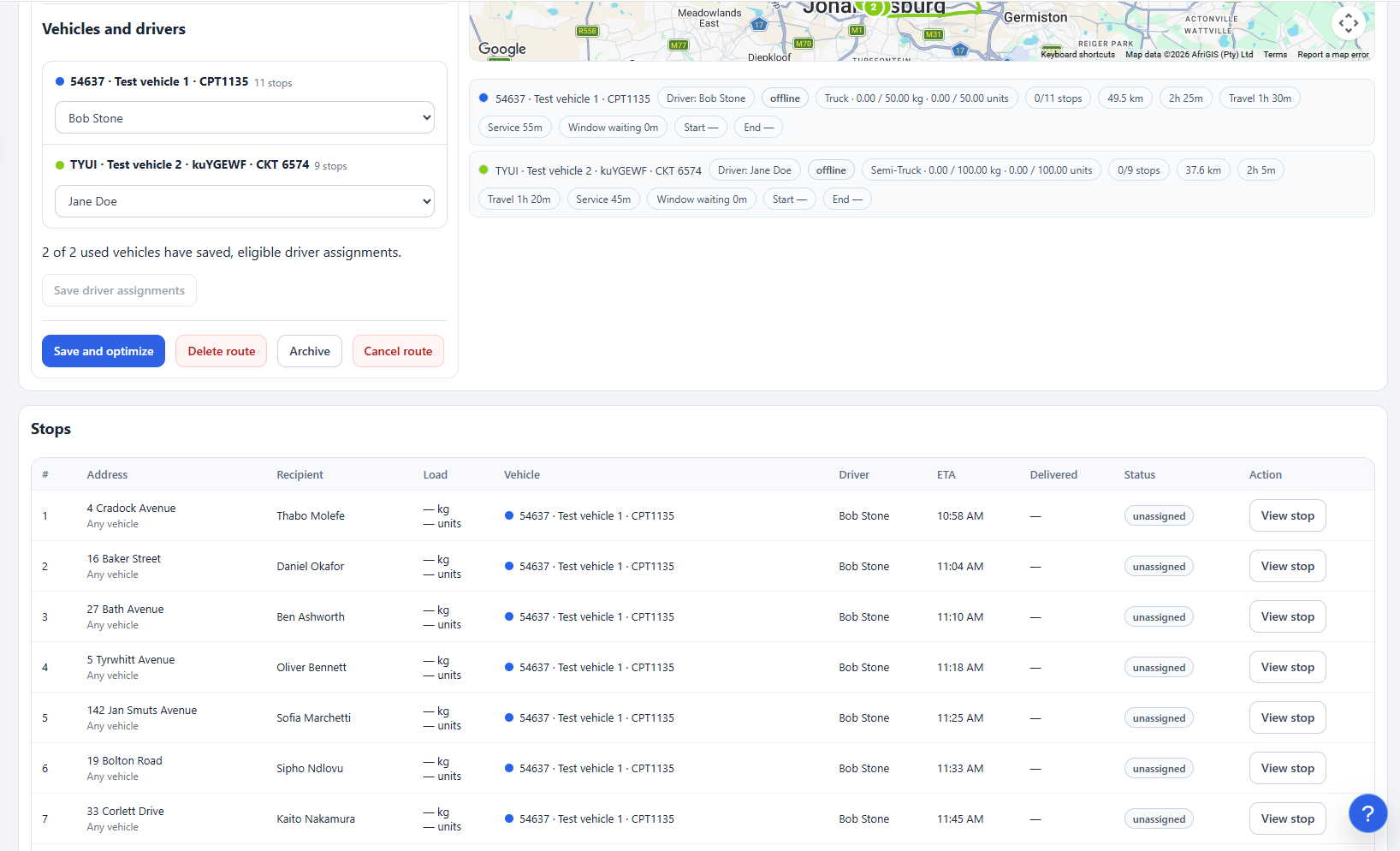
- Under Vehicles and drivers, assign one eligible driver per vehicle before scheduling — partial draft assignments stay private until the route is scheduled
- Edit driver supplies a required Start or End location when travel tracking is on; assignment counts and any required fixes show above Save driver assignments
- Finish or cancel any unfinished vehicle work, including return travel, before switching By Vehicle off
Failed Deliveries, Undo, and Reattempt
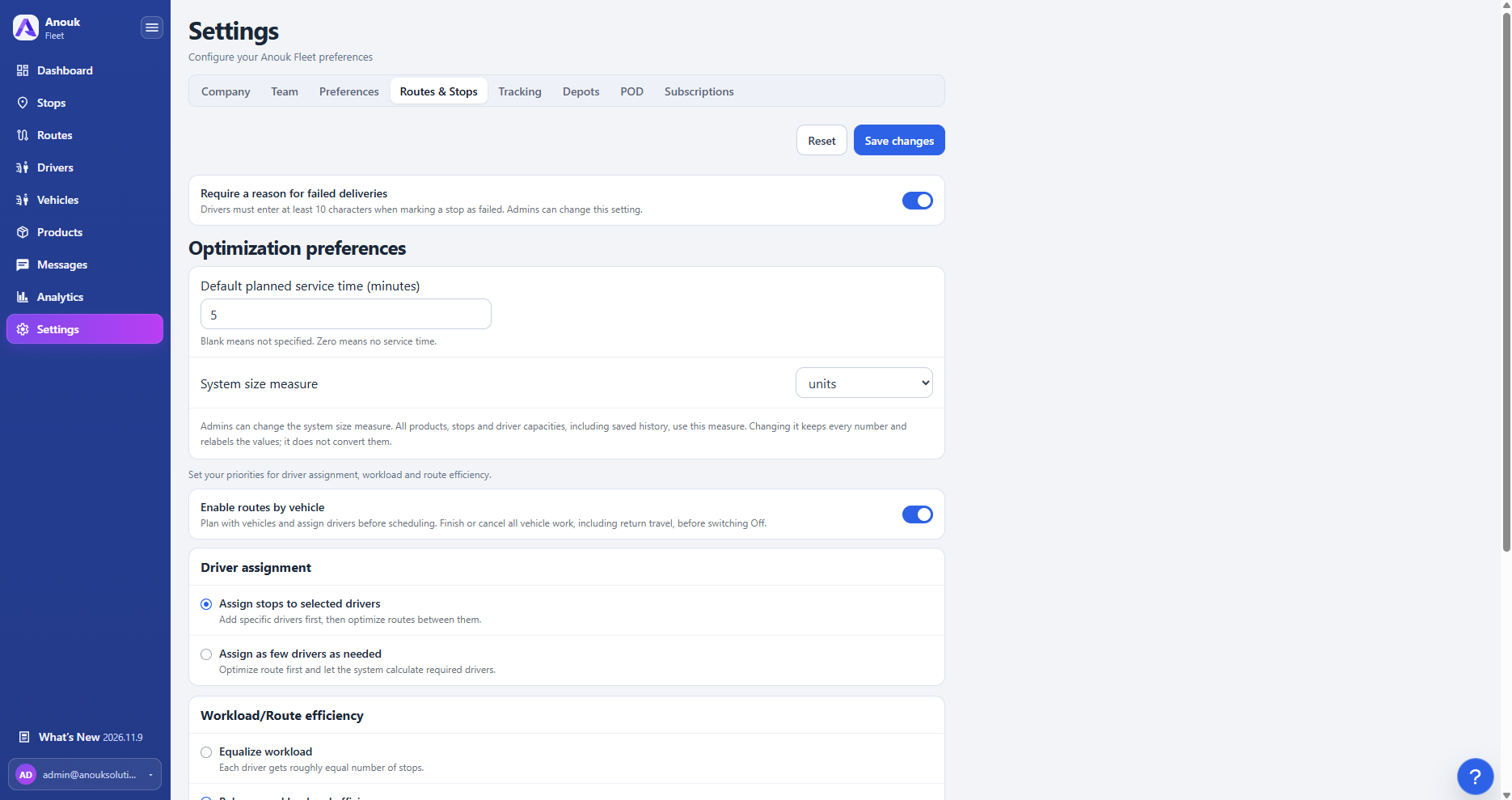
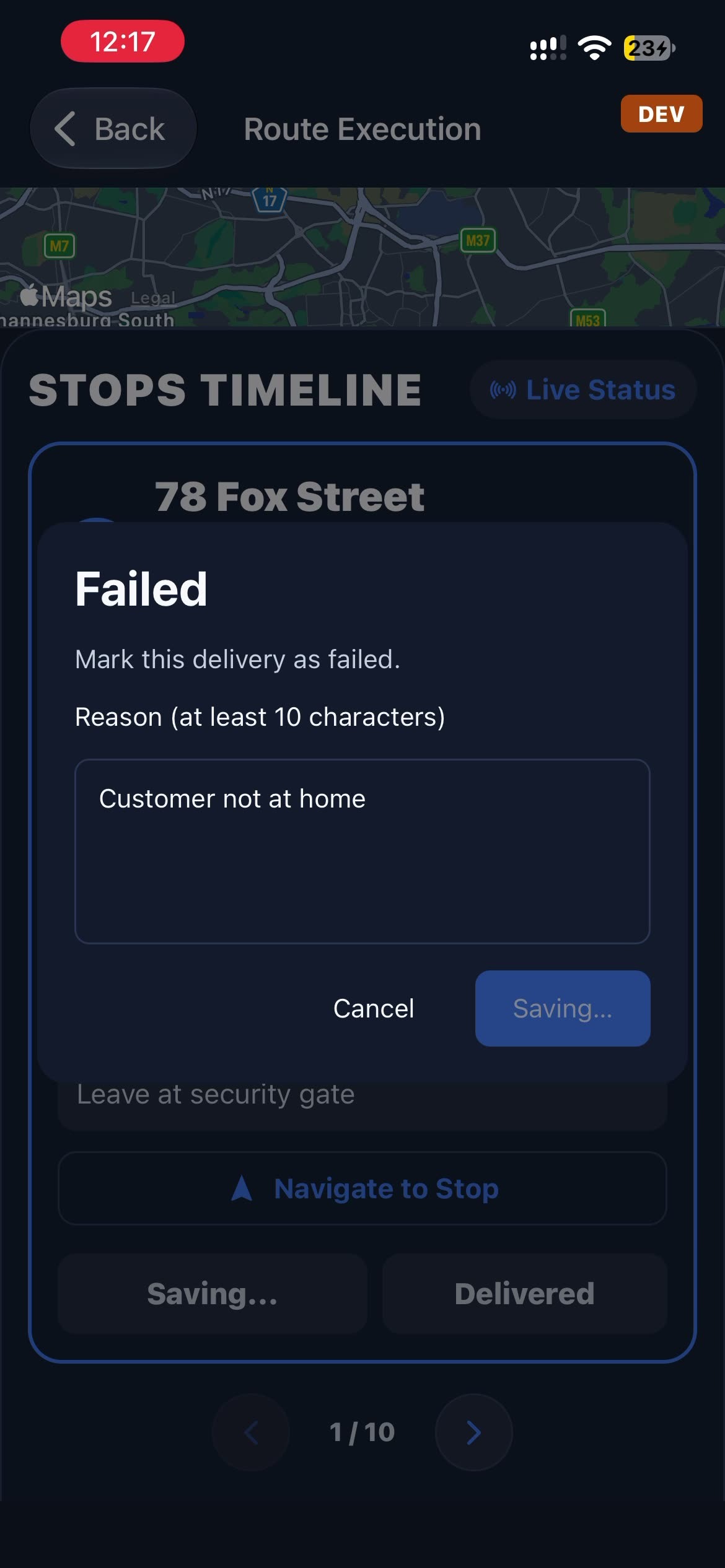
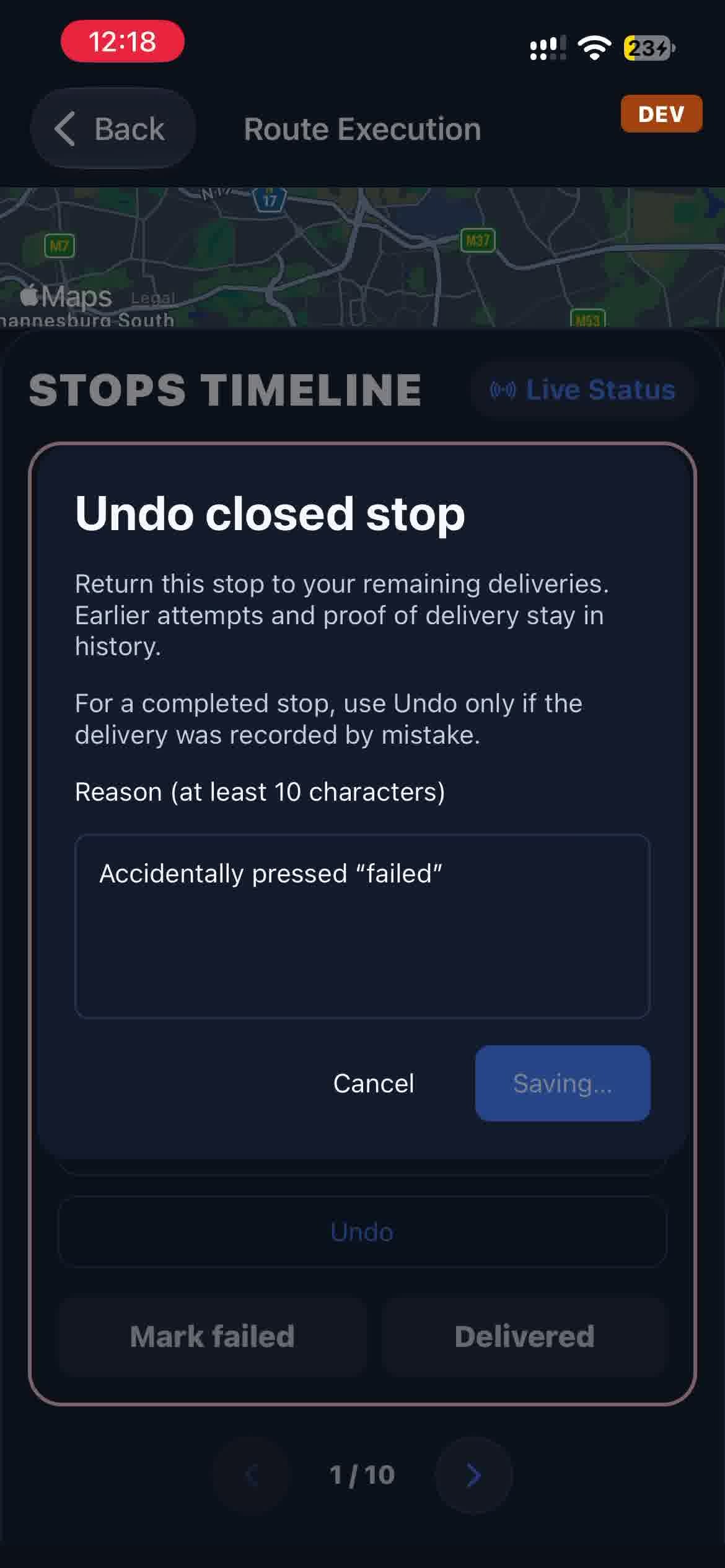
A driver closes a stop as Delivered or Mark failed from the app. If Settings > Routes & Stops has Require a reason for failed deliveries switched on, Mark failed and Undo closed stop each require a typed reason of at least 10 characters before they can be saved.
- Undo closed stop returns a Delivered or Failed stop to the driver's remaining deliveries; earlier attempts and proof of delivery stay in its history
- Use Undo on a completed stop only if the outcome was recorded by mistake — it does not erase what already happened, it reopens the stop
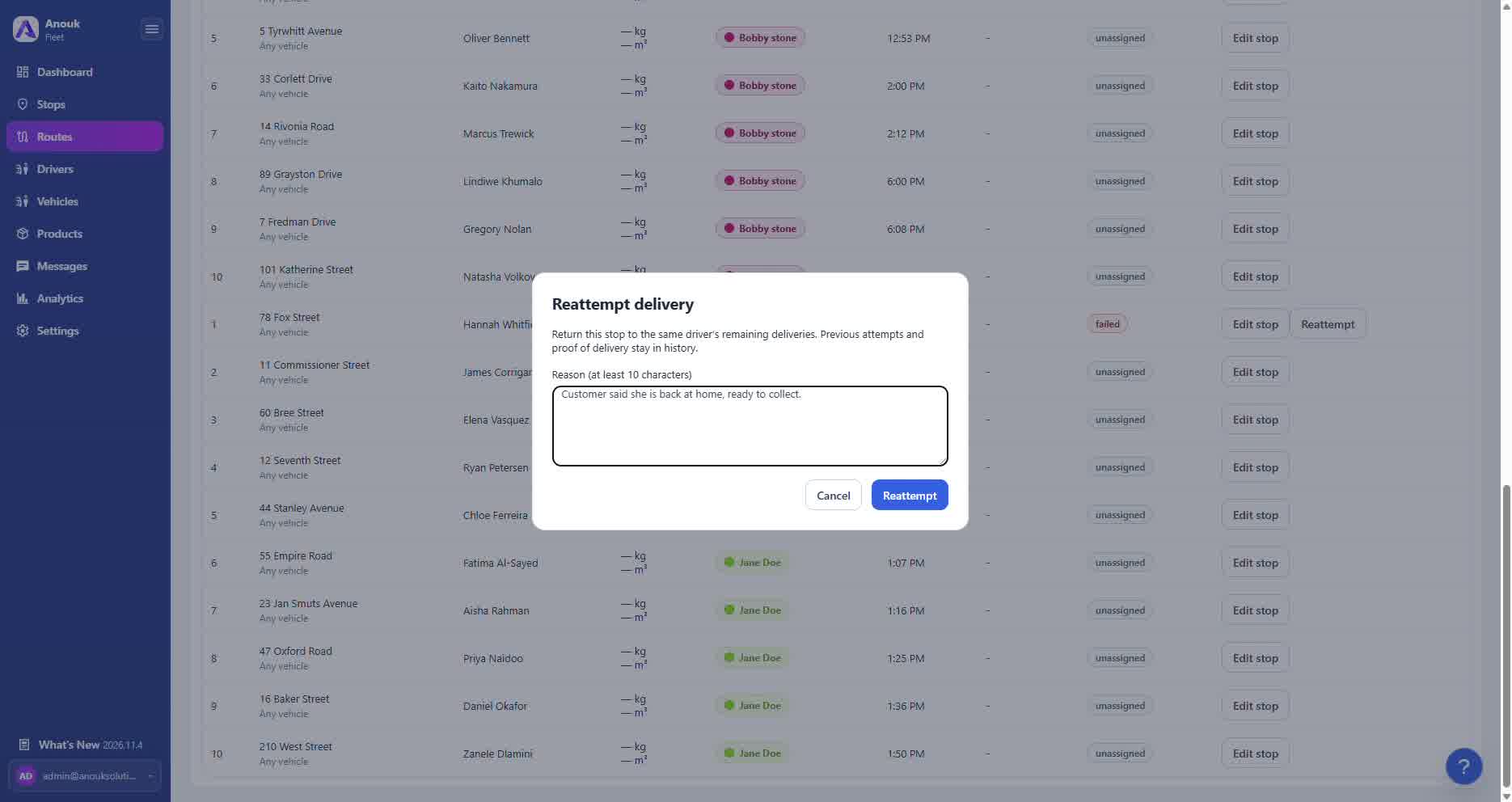
- Dispatchers can Reattempt a failed stop from the Routes stop list, returning it to the same driver's run with the same history kept
04 Drivers
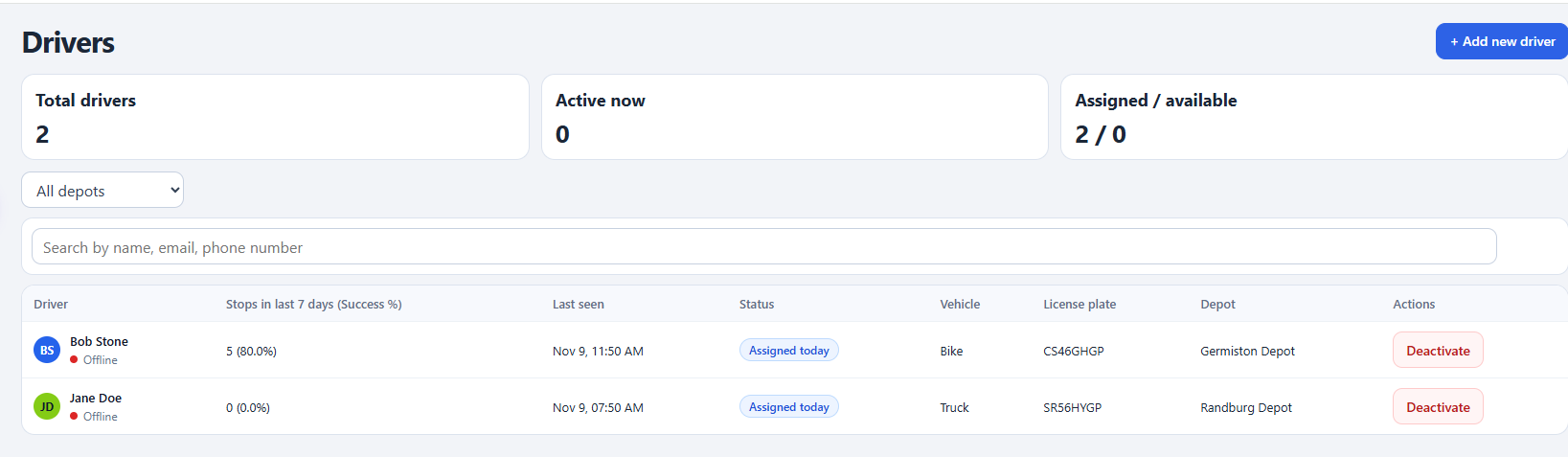
- Review total drivers, active drivers, and assigned vs. available capacity
- Inspect each driver's last-seen status, assigned vehicle, license plate, and depot
- Invite new drivers by email and resend pending invitations when needed
- Deactivate drivers without deleting their profile or delivery history
Good to know
- For By Vehicle routes, choose and save a driver for each vehicle before scheduling, and keep each driver's Start and End location current when travel tracking requires it
05 Vehicles
Vehicles is where fleet capacity lives — available once Routes by Vehicle is enabled.
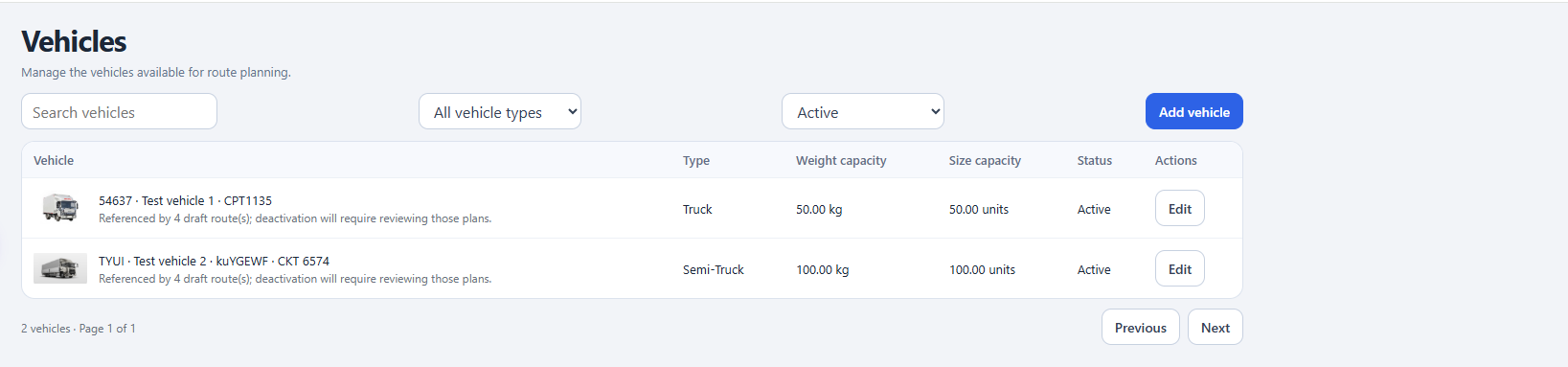
- Add a vehicle, choose its type, and set weight and size capacities — make, model, plate, fleet code, and image are optional
- Search and filter by vehicle type or Active/Inactive status
- Deactivate a vehicle to keep it out of new selections while retaining its route history; only unused vehicles can be deleted
Good to know
- Routes keep their own saved vehicle details and capacities — editing the registry later doesn't change values already on a route
06 Products
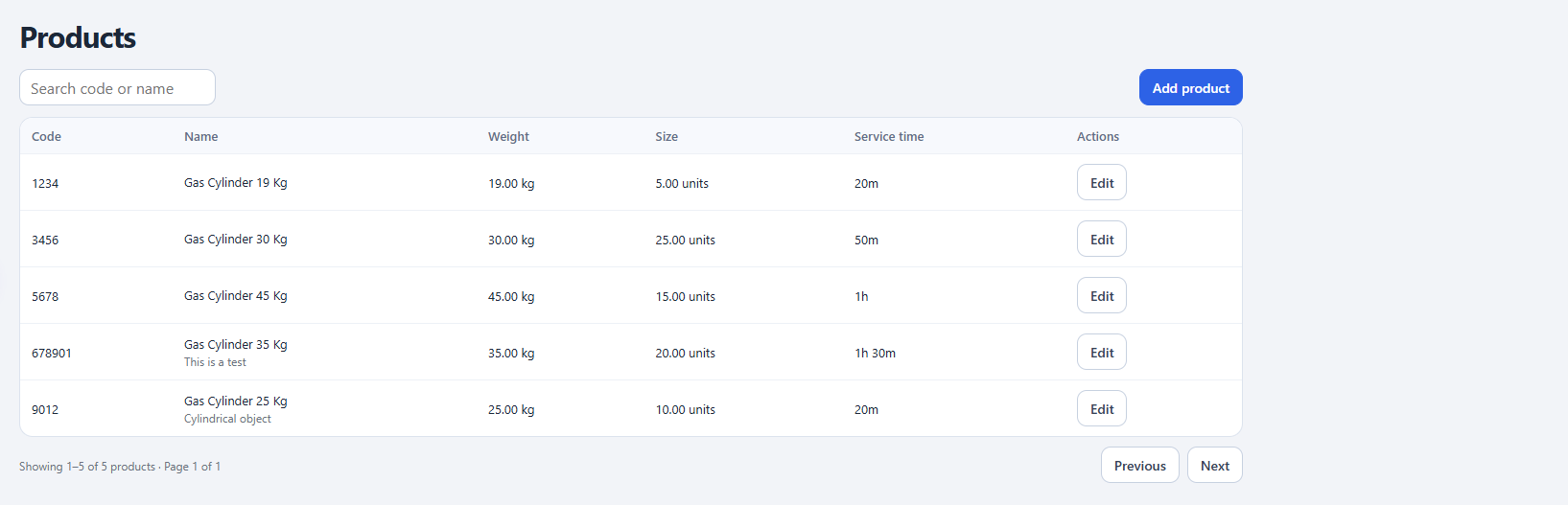
- Build a reusable Products list, with each product's code, name, weight, size, and service duration
- Add products and quantities to a stop — its weight, size, and service time calculate automatically
- Import products in bulk with a Products column in a CSV/XLSX file
- Each stop can have its own service time instead of one fixed time for the whole route
Good to know
- Type over any total to override it, or select Back to auto to restore the automatic value
- A stop keeps the product values it was given when added — updating the catalogue afterward doesn't change figures already saved on existing stops
- Missing measurements are flagged before planning, but an unknown value isn't proof a load actually fits
07 Messages
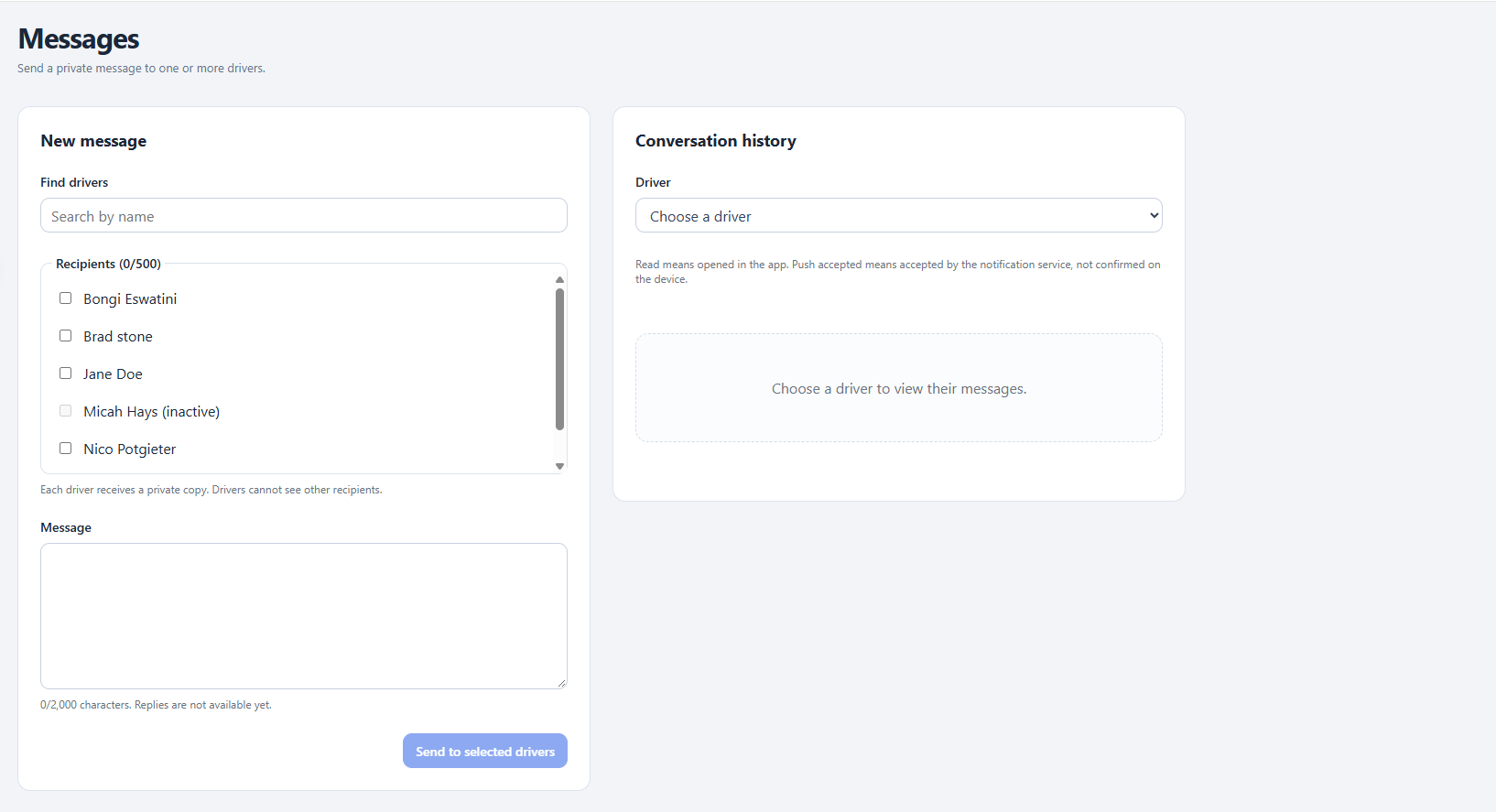
- Message one or more drivers privately — up to 500 eligible recipients at once
- Each driver receives a private copy and cannot see the other recipients
- Review conversation history per driver, including route changes and read status
- Marking a route as scheduled automatically messages each eligible assigned driver, plus a device notification when available
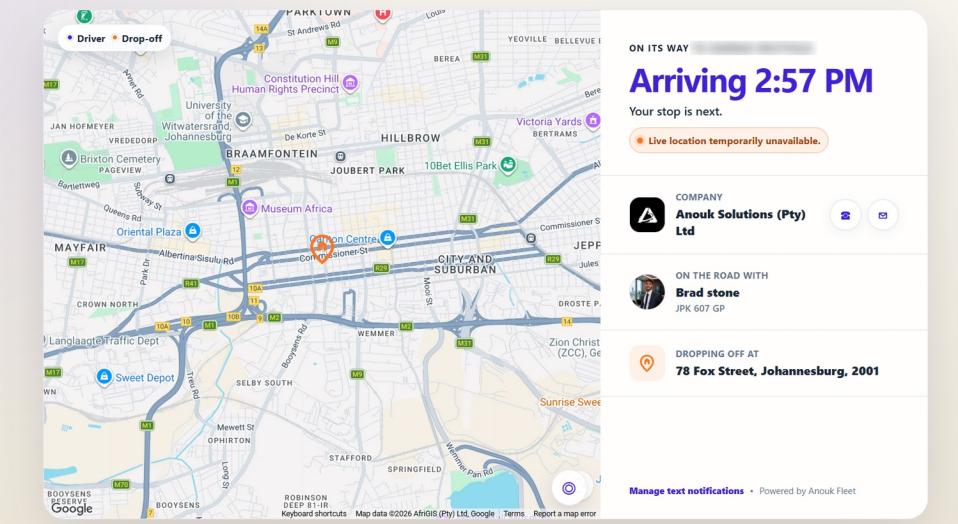
- Recipients get the same visibility on WhatsApp, with a live tracking link
Good to know
- "Read" means the driver opened the message in the app; "push accepted" only confirms the notification service accepted it, not that the device displayed it or the driver saw it
- Drivers need an internet connection to load their inbox, though messages stay available there once reconnected
- A route update with no eligible recipient shows a warning — check the route's assignment and the driver's active status
Recipient WhatsApp Notifications
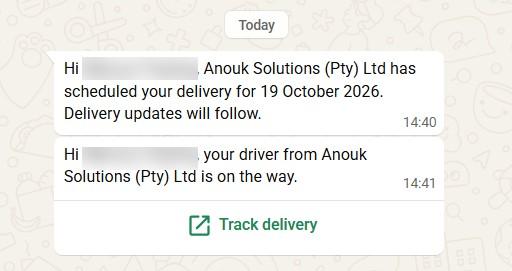
Recipients get updates on WhatsApp, the app they already use. They are told when their delivery is scheduled and when the driver is on the way, with a Track delivery button that opens their live tracking link.
08 Analytics
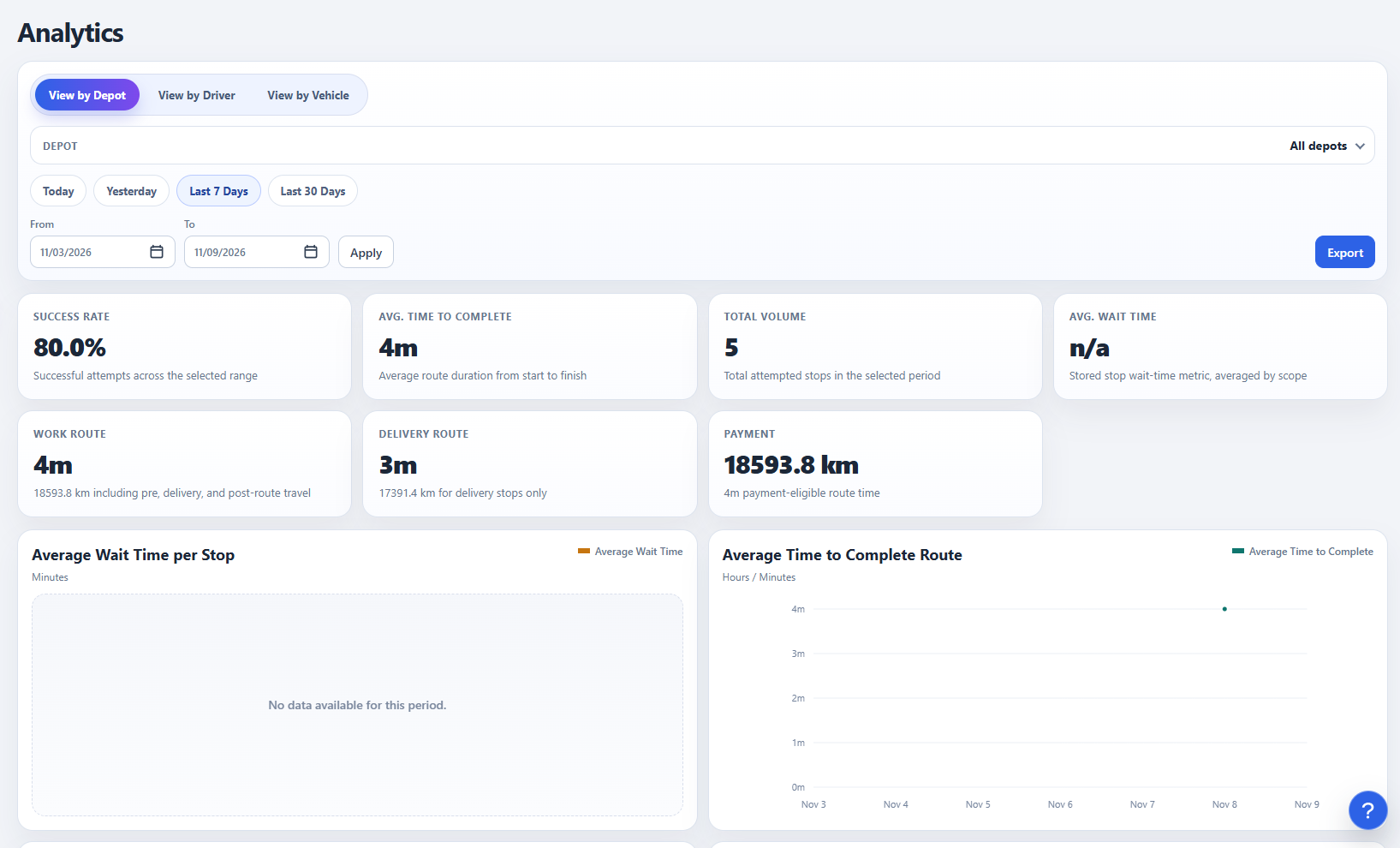
- Review success rate, average completion time, and total attempted stop volume
- Compare work route mileage against delivery route mileage
- Switch between depot, driver, or View by Vehicle (while By Vehicle is enabled) — including inactive vehicles with history
- Export filtered analytics for payroll, invoicing, or business reviews
- Metric notes distinguish estimated delivery distance, recorded driver travel, and payment-eligible distance and time
- Use the driver view with a 30-day range for performance reviews or mileage-based pay checks
09 Settings
Settings covers personal account settings and platform configuration for organisation details, access, localisation, routing, tracking, depots, and proof of delivery.
- Company — organisation identity and the contact details shown in customer-facing communications
- Team — dashboard access, roles, depot restrictions, and ownership transfer; transferring ownership needs at least one other active administrator
- Preferences — time format, distance unit, and currency defaults; currency also governs payment-eligible route calculations and billing references
- Routes & Stops — optimisation priorities, driver assignment strategy, default service time, size measure, the Enable routes by vehicle switch, and Require a reason for failed deliveries (drivers must then enter at least 10 characters when marking a stop failed)
- Tracking — recipient notifications, live tracking links, SMS/WhatsApp channel, and editable message presets; WhatsApp needs its connection and message template approved before sending, and an Available variables panel inserts SMS variables without retyping them
- Depots — the physical hubs that routes, stops, and drivers are assigned to; removing a depot can unlink the drivers and stops attached to it
- Proof of Delivery — which delivery scenarios require a signature, photo, notes, or contactless confirmation; a mandatory scenario forces the driver to complete it or mark the stop failed
- Subscriptions — current plan, included stops, usage, and invoice history; only admins can action a plan or billing change, after reviewing the displayed price and terms
- Account settings — your own name and email preferences; your sign-in email is managed by your authentication provider and can't be changed here. Manage account deletion opens deletion and recovery options with a seven-day grace period to cancel; owners must transfer ownership before deleting only their own account
- Help Center, What's New, and FAQ guides are built into the dashboard — searchable, page-specific help, release notes with a build number for support, and 20 FAQ answers across five categories